How to Reset Toyota Camry Touch Screen
Is your Toyota Camry touch screen frozen, unresponsive, or glitching? A quick reset can often restore normal function without a trip to the dealership. This guide walks you through easy soft and hard reset steps for most Camry models.
Key Takeaways
- Soft reset first: Most touch screen issues fix with a quick power button hold or menu restart.
- Hard reset steps: Press and hold specific buttons or disconnect the battery for deeper issues.
- Model differences: Reset methods vary by Camry year and trim level.
- Check connections: Loose cables or blown fuses can mimic touch screen failure.
- Professional help: Physical damage or persistent glitches need a Toyota technician.
- Backup settings: A hard reset may erase saved radio presets and phone pairings.
📑 Table of Contents
- Why Your Toyota Camry Touch Screen Might Need a Reset
- Soft Reset: The First Step to Try
- Hard Reset: Going Deeper When Soft Reset Fails
- Reset Steps by Toyota Camry Model Year
- Common Touch Screen Problems and What They Mean
- When a Reset Is Not Enough
- Tips to Prevent Future Touch Screen Issues
- Conclusion
Why Your Toyota Camry Touch Screen Might Need a Reset
Your Toyota Camry touch screen does a lot of work. It shows your radio station, guides you with navigation, displays the backup camera, and controls the climate. When everything works, you hardly think about it. When the screen freezes or stops responding, even a short drive can feel stressful.
Imagine you are backing out of a parking spot and the backup camera does not appear. Or you are on a road trip and the navigation map is stuck. These moments are annoying, but they are usually easy to fix. A Toyota Camry touch screen reset is often all you need to get things moving again.
Touch screens are basically small computers. Like your phone or laptop, they can get stuck. A software process might crash. A connected phone might confuse the system. Extreme heat or cold can also make the display act up. The good news is that most of these issues are temporary. You do not need to be a mechanic to fix them.
In this guide, you will learn how to reset your Toyota Camry touch screen using simple steps. We will cover soft resets, hard resets, and what to do if nothing works. By the end, you will feel confident handling a frozen or glitchy display.
Soft Reset: The First Step to Try
A soft reset is the easiest and safest method. It restarts the infotainment system without deleting your saved settings. Think of it like restarting your phone when an app freezes. You should always try a soft reset before attempting anything more involved.
Using the Power Button
Most Toyota Camry models have a physical power button on the touch screen unit. It is often near the top edge or along the side. To start, press and hold this button for about ten to fifteen seconds. Keep holding even if nothing happens at first.
After a few seconds, the screen should go black. This means the system is shutting down. Release the button and wait. The screen should turn back on by itself. You might see the Toyota logo during startup. Once the home screen appears, tap a few icons to make sure the touch response is working.
If the screen does not turn back on after a minute, press the power button once. Wait for the system to boot. This simple power cycle resolves most minor glitches.
Using the Settings Menu
Some newer Camry models let you reset through the touch screen menu. This only works if the screen still responds to your taps. Tap the home button. Look for Settings, then select System or About. You may see an option labeled Restart or Reset. Tap it and confirm your choice.
The system will reboot automatically. This method is clean and quick. If the menu is laggy or unresponsive, skip it and use the power button instead.
What Happens After a Soft Reset
After a soft reset, your paired phones and radio stations usually stay saved. The clock might reset to 12:00. You may need to reconnect your phone via Bluetooth. These are small tasks compared to dealing with a frozen screen.
Test the backup camera, radio, and navigation after the reset. If everything works, you are done. If the problem returns within a day, you may need a hard reset.
Hard Reset: Going Deeper When Soft Reset Fails
If your Toyota Camry touch screen still acts up after a soft reset, it is time for a hard reset. This method is more forceful. It clears temporary memory and can fix stubborn software bugs. Keep in mind that a hard reset might erase some personal settings, such as saved navigation addresses or Bluetooth pairings.
Button Combination Reset
Certain Camry models allow a hard reset using a combination of buttons. For example, you might need to press and hold the audio power button and the tuning knob at the same time. Hold them for ten seconds. Wait for the display to go dark and then reboot.
Other models use the map button and the back button together. Because button layouts vary by year, check your owner’s manual for the exact combination. If you cannot find the manual, start with the power button method. It works on the widest range of Camry models.
Disconnecting the Car Battery
Disconnecting the battery is the most thorough way to reset the system. It cuts all electrical power to the infotainment unit, forcing every module to restart from scratch.
First, turn off your Camry and remove the key from the ignition. Open the hood and find the negative battery terminal. It is usually marked with a minus sign and has a black cable. Use a wrench to loosen the nut. Carefully remove the cable and move it away from any metal surfaces so it cannot accidentally touch the terminal.
Wait at least fifteen minutes. This gives the system enough time to fully discharge. After waiting, reconnect the negative cable and tighten the nut securely. Start your car. The touch screen should boot up as if it were brand new.
You may need to reset your clock and radio stations. If your Camry has a navigation system, you might want to delete saved navigation favorites that are outdated or incorrect.
Reset Steps by Toyota Camry Model Year
Toyota updates its infotainment hardware every few years. A reset method that works on a brand-new Camry may not work on an older one. Here is a general guide by model year.
2018 to 2023 Camry Touch Screens
These models use newer systems like Toyota Entune or Audio Plus. The screens are larger, sharper, and more responsive. A soft reset usually means holding the power button for ten seconds. Some units have a small reset pinhole behind the faceplate. If the screen is completely dead, you can use a paperclip to press that pinhole.
These systems also support smartphone integration. If you plan to customize your display later, you can change the startup screen on a 2022 Toyota through the settings menu. This lets you personalize what you see when the car starts.
2014 to 2017 Camry Touch Screens
Camrys from this era have smaller touch screens, but they can still freeze. The power button method works well here. Another trick is to turn off the car, open the driver’s door, and wait two full minutes before restarting. This drains leftover power from the system and often clears minor glitches.
Older Camry Models (2010 and Earlier)
Older Camrys have simpler displays. Some do not have a full touch screen at all. If the radio or screen acts up, disconnecting the battery is often the best reset method. You can also check the fuse box for a blown audio fuse. A blown fuse can make the screen look dead when it is actually a power issue.
Common Touch Screen Problems and What They Mean
Not every issue is solved by a reset. Understanding the symptom helps you decide what to do next.
Frozen or Unresponsive Screen
A frozen screen usually means the software is stuck. A soft reset solves this most of the time. If the screen freezes again immediately after restarting, you may have a deeper software conflict or a failing head unit.
Ghost Touches and Delayed Response
Ghost touches happen when the screen registers taps you did not make. This can be caused by a dirty screen, a low-quality screen protector, or moisture. Clean the display with a microfiber cloth. Remove any protector and test again. If ghost touches continue, a reset might help temporarily, but you may eventually need a repair.
Black or Blank Display
A black screen could mean the unit has no power. Check if you can still hear the radio. If you hear audio but see nothing, the display panel itself might be faulty. Try a hard reset or battery disconnect before assuming the screen needs replacement.
When a Reset Is Not Enough
Resetting your Toyota Camry touch screen fixes many problems, but it cannot fix everything. Knowing when to stop and get professional help saves you time and frustration.
Signs of Hardware Failure
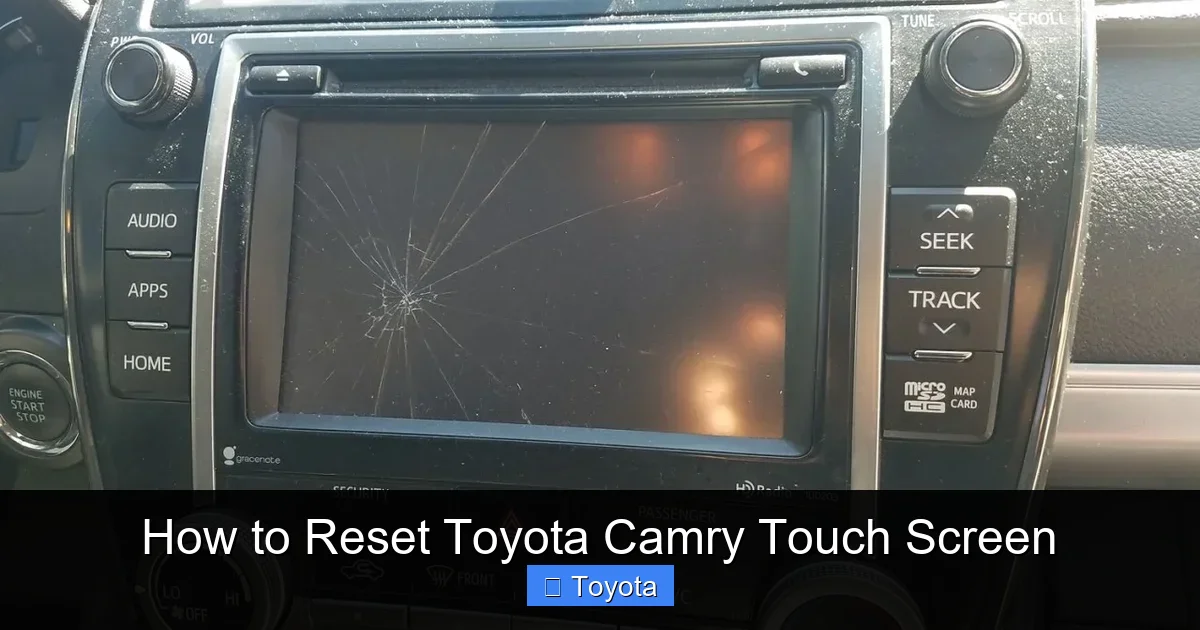
Cracks, liquid damage, or colorful lines across the screen are hardware issues. No amount of resetting will repair a broken display. If the screen is physically damaged, you need a replacement unit installed by a technician.
Software Update Needs
Sometimes the infotainment system needs a software update. Toyota releases updates to fix bugs and improve performance. A dealership can check if your system is running the latest version. If your screen glitches after every reset, ask about available updates.
When to Visit a Toyota Dealership
If you have tried a soft reset, hard reset, and battery disconnect without success, visit a Toyota dealership. A technician can run diagnostics. They can check wiring, fuses, and the head unit itself. Bring your vehicle identification number and write down when the problem started.
While you are there, you can ask about other Camry features. For example, if you use your phone through the screen, you may want to remove a contact from the Toyota home screen to keep your contact list clean and organized.
Tips to Prevent Future Touch Screen Issues
Prevention is easier than repair. Keep your screen clean with a soft, dry microfiber cloth. Avoid pressing too hard on the display. Do not let drinks or cleaning sprays get near the screen. If you use Apple CarPlay or Android Auto, keep your phone software updated.
Park in the shade when possible. Extreme heat can make the touch screen lag or dim. If you add aftermarket accessories, make sure they are installed correctly. Poor wiring can cause electrical interference that affects the infotainment system.
Conclusion
A malfunctioning Toyota Camry touch screen does not have to ruin your day. Start with a soft reset by holding the power button. If that fails, try a hard reset or disconnect the battery for fifteen minutes. Most issues clear up quickly with these simple steps.
Remember that reset methods vary by model year. When in doubt, check your owner’s manual. If the screen stays frozen, cracked, or unresponsive after multiple resets, it is time to visit a Toyota dealership. They have the tools and training to diagnose deeper problems.
Take care of your touch screen, and it will take care of you. Enjoy your music, navigation, and backup camera without the frustration of a frozen display.
Frequently Asked Questions
How do I reset my Toyota Camry touch screen?
Press and hold the power button on the display for ten to fifteen seconds until the screen turns off and restarts. If that does not work, try disconnecting the negative battery terminal for fifteen minutes.
Will resetting the touch screen erase my radio presets?
A soft reset usually keeps your settings intact. A hard reset or battery disconnect may erase radio presets, Bluetooth pairings, and the clock.
Why is my Camry touch screen frozen?
A frozen screen is often caused by a software glitch, a conflicting phone connection, or a temporary system overload. A soft reset typically clears it.
Can I reset the touch screen while driving?
It is best to reset the screen while parked. Trying to press buttons while driving can distract you and is unsafe.
Does every Camry model use the same reset method?
No. Reset steps vary by year and trim level. Check your owner’s manual for the exact procedure for your model.
When should I take my Camry to a dealership for touch screen issues?
Visit a dealership if the screen stays black, shows physical damage, or remains unresponsive after multiple reset attempts.